




How to Build Your AI Executive Team in Claude Co-Work: A Step-by-Step Setup Guide
What if you could brief your entire marketing team — copywriter, strategist, landing page builder, and executive coach — in one paragraph, and have them deliver a complete funnel in 15 minutes?
That's not a hypothetical. That's exactly what's happening inside Claude Co-work when you set it up the right way.
This guide walks you through the exact system — from folder structure to agent creation to running your first parallel workflow — so you can replicate these results for your own business.
What You'll Need Before You Start
Before diving into agents and parallel workflows, make sure you have these foundations in place:
Claude Co-work installed and running (this is the desktop application, distinct from regular Claude chat)
A designated root folder for your Co-work sessions (I call mine Master Workspace)
That root folder synced to Google Drive for cross-device access
The forge.md file (Agent Forge — available in the resource library in the Pykthos Mastermind alongside this guide)
About 30 minutes for initial setup
If you're starting from scratch with Co-work, watch the Week 1 session replay first. This guide picks up at Week 2 — the automation and agent setup phase.
Step 1: Build Your Claude.md File
This is the single most important piece of your entire setup. The Claude.md file is a plain text document that lives in your Co-work root folder and tells every agent, every session, and every task who you are and how your business works.
Without it, every conversation starts from zero. With it, every agent already knows your business before you type a single word.
There are six questions from the Week 1 session that form the foundation of a strong Claude.md file — if you haven't answered those yet, go back to that replay and work through them. Once you have your answers, open a Co-work session and paste them into the chat. Then say: Based on these answers, can you build my Claude.md file and save it to my root folder?
It will build and save the file. That's it.
You can also just tell Claude your answers conversationally — dictate them, type them, whatever works. The key is getting that information into the file so Co-work has it permanently.
Pro tip: Also add your brand colors, fonts, and logo reference to the Claude.md file. That way, when agents build HTML pages or design briefs, they automatically apply your brand without you asking.
Here's what my Claude.md file contains as a reference point:
Business context, offers, and positioning
The list of all active agents and what they're responsible for
Where system files and project folders live
Recurring workflows and how projects get handed off
Active project statuses and upcoming dates
Brand guidelines and communication preferences
Yours will look different. That's the point — it's yours.
Step 2: Create Your Agents Folder and Install Agent Forge
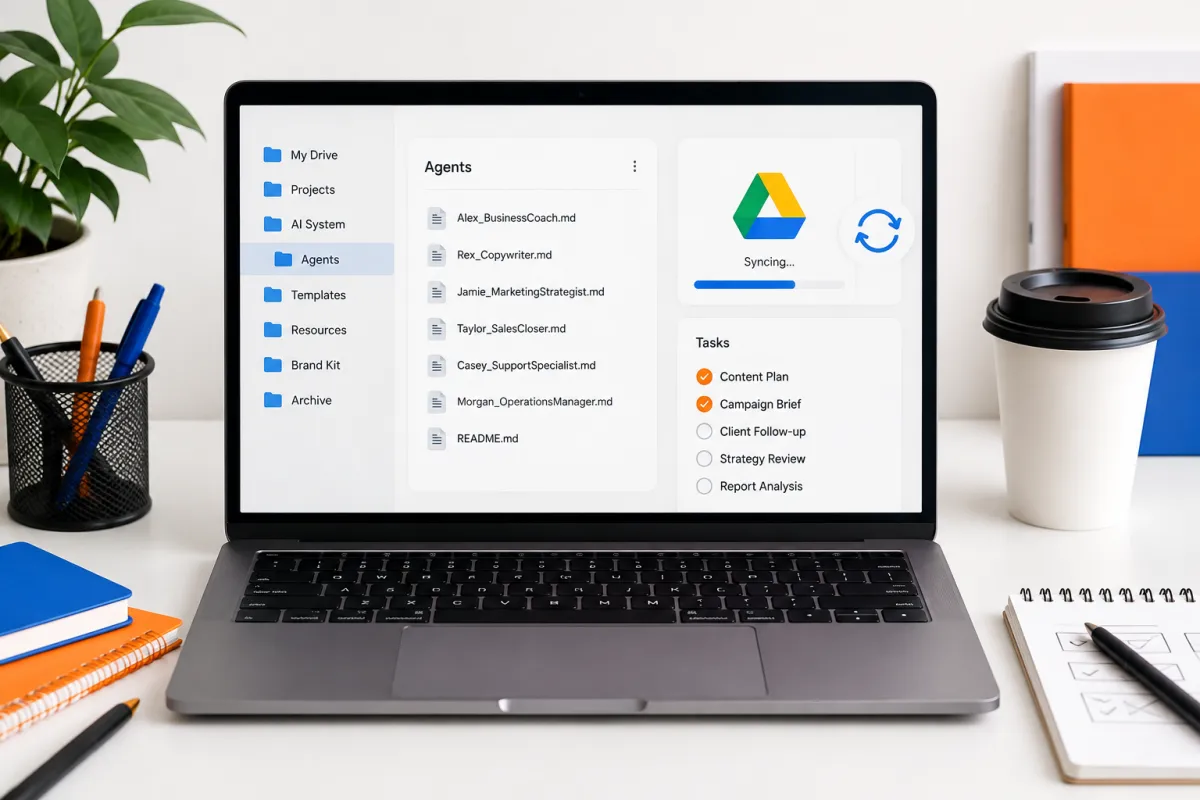
Agent Forge (forge.md) is the agent that builds agents. Think of it as your HR department — it takes a job description and creates a fully-formed team member with a personality, skill set, and operating principles tailored to your business.
Here's how to install it:
In your Co-work chat window, type:
I want us to create a new folder called Agents — this is where our working agents will live. I'm attaching a file called forge.md. Please put it inside the Agents folder and let me know when it's done.
Then click the plus sign in the chat window, find forge.md in your downloads folder, attach it, and hit send.
Once Forge is in your Agents folder, update your Claude.md:
Can you please update my Claude.md file with the Agents folder location, and note that any time I ask you to spin up an agent, you should look in this folder to find the agents I'm referencing.
Now Co-work knows where your agents live and will automatically reference them whenever you ask to use one.
Why Google Drive sync matters here: When your Co-work root folder is synced to Google Drive, every agent you create travels with you. Open Co-work on a different computer, sync the folder, and your entire team is ready — Claude.md tells Co-work where everyone is.
A note on projects vs. root folder: If you're working out of a project in Co-work rather than the root folder, be aware that projects only have access at the folder level they're operating in — they can't reach higher. If Co-work asks you for folder access, you can grant it. Or you can simply upload your existing files the same way you uploaded forge.md, using the plus sign to attach them directly.
Step 3: Map Your Business Departments

Before you build agents, spend five minutes on this exercise. It will determine the quality of your entire AI team.
Imagine your business is a fully-staffed organization. What departments does it need?
Don't think about what you have — think about what would make your business run without you being the bottleneck for everything. Common departments for coaches, consultants, and service providers include:
Copywriting — emails, sales pages, social content
Marketing strategy and positioning — offer framing, audience targeting
Website and funnel building — landing pages, thank you pages, HTML
Email architecture — sequences, automation logic, nurture campaigns
Business operations — project management, prioritization, auditing
Content creation — lead magnets, guides, checklists, scripts
Write down at least three departments where you currently spend the most time or feel the most stuck. These become your first three agents.
Also consider building a middle manager. My agent Alex is a business executive coach whose job is to run point on every project — briefing the team, reviewing their output, and only bringing me what's been approved. As one of our members put it perfectly: the prompt you give your agents is like a kickoff meeting. You're setting the guidelines and telling them how to work together. Having a middle manager means you're not the one sitting in every meeting — Alex is.
Step 4: Build Your Agents with Forge
Now the fun part.
In your Co-work chat, type the following (adapting for your specific roles):
I want to spin up Forge from our Agents folder. Based on my Claude.md file, I want to create [number] agents — one each for [list your roles, e.g., email copywriter, marketing strategist, landing page builder, and business operations manager]. Ask me questions about each agent as necessary so you can complete this with precision.
Forge will read your Claude.md, understand your business context, and start building. It may ask clarifying questions about tone, specialty, or operating style for each role.
When it's done, it will save each agent as a markdown file in your Agents folder.
Once all agents are built, open a new Co-work task and ask:
Please update my Claude.md file with a complete list of all agents in the Agents folder, including what each one does. Search the folder and compile the list.
Now Co-work has a living roster of your team. When you start a project, it will suggest which agents are most appropriate and can recommend who to bring in based on the task.
One more thing: You can also augment your agents after Forge creates them. If you want to add an instruction like don't give me anything until you've reviewed everything the other agents produced, just include that in your prompt when you spin them up. You're not locked into whatever Forge built — you can layer in additional operating instructions at any time.
Step 5: Run Your First Parallel Workflow

This is where everything you've built pays off.
For your first test run, ask your agent team to build a complete lead magnet funnel. Here's the prompt structure that works:
Based on everything you know about my business from Claude.md, I want the team to work together in parallel. Please spin up [list your agents] and have them collaborate to: (1) determine what lead magnet would work best for my audience and create it, (2) write the landing page copy, (3) write the thank you page copy, (4) write a 5-part email welcome sequence. The copy should be consistent across all pieces. Think through this thoroughly, step by step. Only give me approved output.
The key phrase that changes everything: "in parallel."
This tells Co-work to run multiple agents simultaneously rather than sequentially. Claude can spin up to around five sub-agents at a time. Instead of waiting for agent one to finish before starting agent two, they all work at the same time — dramatically cutting output time and ensuring consistency because they're all working from the same brief.
What to expect:
Co-work will confirm it's spinning up the agents
You'll see individual agent confirmations as each one loads
The tool log will show each agent reading files, generating content, and passing briefs
Your middle manager (if you have one) will review and approve before the final output surfaces
Total time for a complete funnel: typically 15-30 minutes
The phrase think through this thoroughly, step by step — only give me the output that's approved forces the agents to internally verify their work before surfacing it to you. This dramatically improves first-pass quality.
Step 6: Use the Output and Extend It
Once your agents deliver the funnel, here's how to put it to use immediately:
For landing pages in GoHighLevel: Don't try to import the HTML directly. Instead, ask Co-work: Give me the prompt I can drop into GoHighLevel's AI builder to recreate this page. Then drop that prompt directly into the GHL builder.
For email sequences: The markdown file your agents produce can be imported directly into any email platform or used as a reference document for building your automation.
For brand consistency: Add colors, fonts, and logo details to your Claude.md file, then re-run the workflow. Agents will automatically apply brand guidelines going forward.
For quality checking: Always run a final audit. Spin up your business manager agent and say: Please review all the output from today's workflow. Flag anything that's inconsistent, incomplete, or misaligned with our Claude.md. This catches truncations, missed details, and alignment issues before you publish anything. Think of it like a precocious ten-year-old working in an industrial kitchen — brilliant and fast, but you always want to double-check the work.
Step 7: Set Up Scheduled Tasks
This is the homework that takes your setup from reactive to proactive.
Co-work can run scheduled tasks — but your computer needs to be on and awake for them to run. There's a toggle in Co-work's scheduled tasks settings to keep your computer awake for this purpose. What you'll find in practice is that your screen may come on briefly while Claude does its work, then go back off. It just works.
Here's how I use scheduled tasks:
11 PM nightly: Claude reads all my Slack channels — individual messages, group conversations, all of it — and updates my task list (tasks.md) with completed items, pending reviews, and new tasks from the team
Morning: An updated task list is sent to my Slack as a message — so my first task each day is already organized before I sit down
I even have it include a daily hypnosis trivia question at the end. It keeps things interesting.
To set this up: In Co-work, click New Task and ask it to schedule a recurring task. Specify what you want it to do, what time, and where it should output the results.
For heavy parallel workflows: Check Claude's off-peak hours and schedule your largest token-intensive jobs for those windows. This keeps your daily working hours available for lighter, more interactive tasks. You can ask Claude directly what its current peak usage hours are, as they update these as they add more infrastructure.
Your Immediate Action Steps
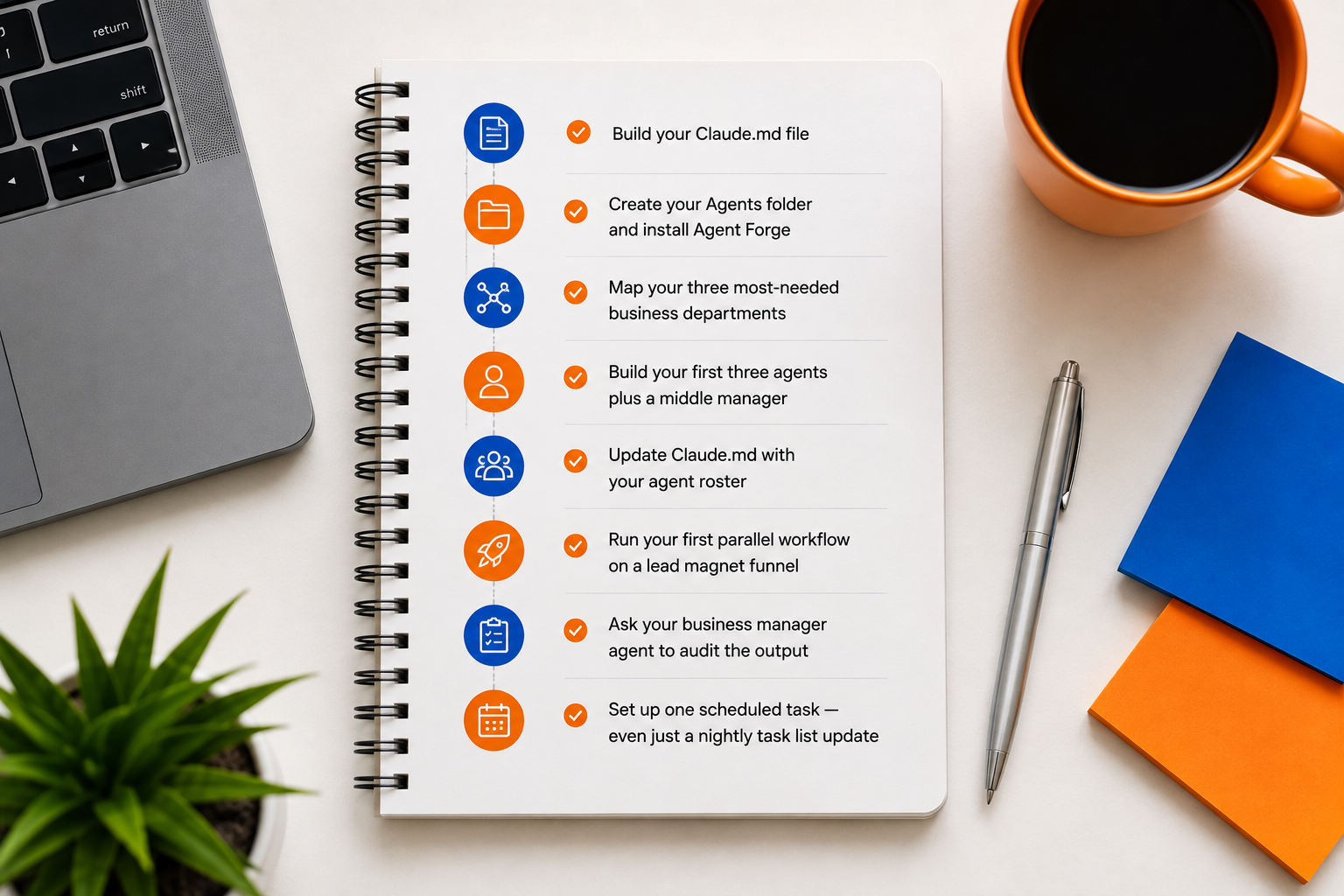
Here's your prioritized checklist to get this running this week:
Build your Claude.md file using the six questions from the Week 1 session
Create your Agents folder and install Agent Forge
Map your three most-needed business departments
Build your first three agents plus a middle manager
Update Claude.md with your agent roster
Run your first parallel workflow on a lead magnet funnel
Ask your business manager agent to audit the output
Set up one scheduled task — even just a nightly task list update
The system compounds. Every agent you add, every piece of context you put in your Claude.md, every workflow you run makes the next one faster and better.
You're not just building tools. You're building a team that knows your business as well as you do — and works while you're not at your desk.
Need the Agent Forge file to get started? Our Pykthos Mastermind members get access to these types of resources and more.


