



How I Use Claude Cowork as My AI Chief of Staff (And Why You Should Too)
I used to hate project management tools. Trello, ClickUp, Asana — every single one of them felt like another thing I had to maintain, another system that needed feeding. As my business partner Chris put it, it's worse than putting away laundry. So I stopped using all of them.
And I built something better.
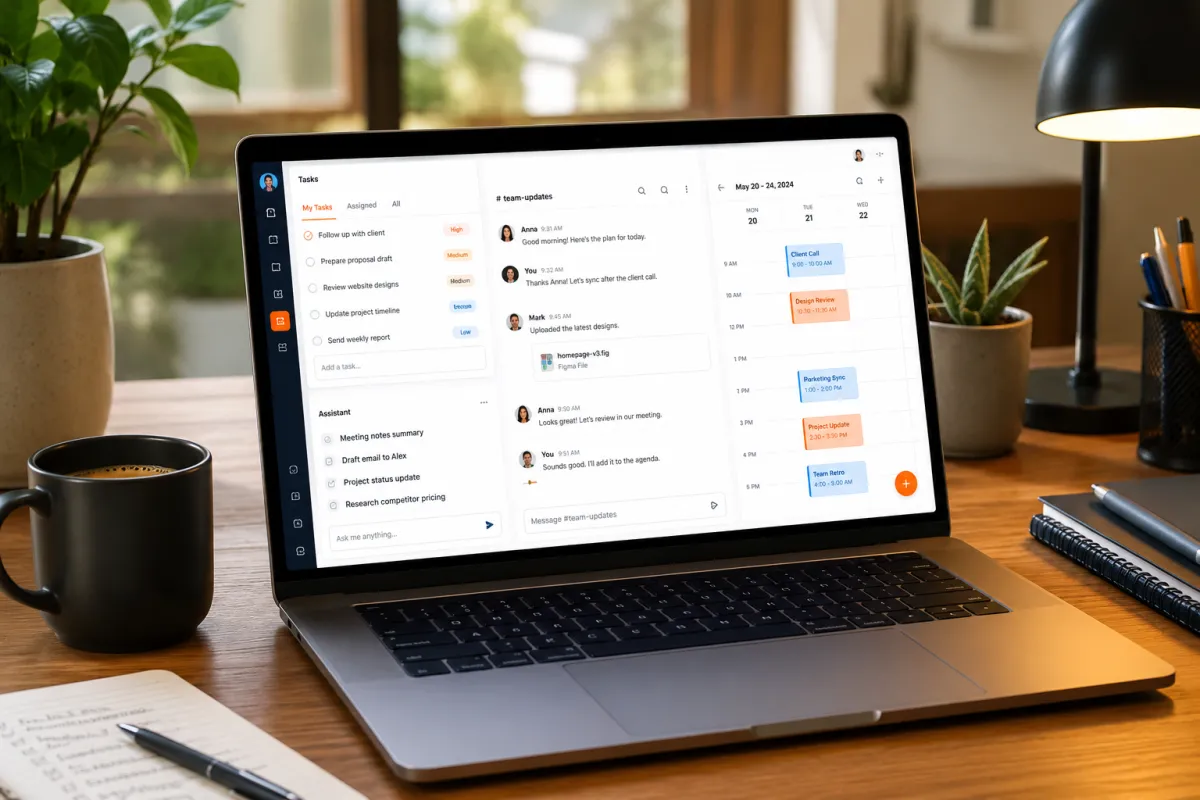
What I have now is a single AI-powered workspace — Claude Cowork — that reads my Slack channels, scans my emails, tracks tasks across every one of my businesses, manages my family calendar, and gives me a daily briefing every morning. The cost to get started? $20 a month.
Let me show you exactly what it does and how I use it.
What Makes Cowork Different From Regular Claude
Regular Claude lives in a browser window. It's powerful for drafting and brainstorming, but it doesn't have persistent memory across sessions and it can't interact with files on your computer.
Claude Cowork runs as an application on your actual machine. That changes everything:
It can read and write files directly to your computer
It connects to external tools like Slack, Google Drive, Canva, and your calendar via built-in connectors
It maintains context across sessions through the files it creates and reads on your machine
It can run scheduled tasks — it temporarily wakes your computer, runs the task, and puts it back to sleep
It lets you switch between AI models mid-conversation to manage costs
Think of it less like a chatbot and more like a staff member who has access to all your files, reads your communications, and keeps everything organized.
What You Need to Get Started

The minimum setup is simple:
Claude subscription at the $20/month level (not the free tier)
The Claude desktop app downloaded to your Mac or PC
That's it. You don't need technical skills and you don't need the more expensive Max plan unless you're doing genuinely heavy lifting all day. The $20 plan does have usage limits — it resets every 5 hours, and there's also a weekly limit. I hit the weekly limit when I was first building out my initial Cowork setup. But treat the timeouts as natural breaks rather than obstacles. Work with it, not against it.
One practical tip: store your Cowork folder in Google Drive so you can access everything across all your devices. I don't always pull up my task list on my phone, but having that option is useful.
The Master Workspace: Your Central Hub
The first thing I built was what I call my Master Workspace — a project inside Cowork that has access to everything across all my businesses and my personal life.
Once you have this set up, you can open a new chat and simply ask: "Can you give me a list of all the tasks I have coming up over the next two weeks that you think are important, across any of my businesses or even personal life?"
Cowork reads the files it has written to your computer, cross-references everything, and gives you a prioritized list. No app to open. No system to update. Just ask.
I demonstrated this live in a recent mastermind session. The list that came back included things like a 30-day A/B split test check-in that was overdue, ads that needed to be scaled, rejected ads that had been flagged by a team member in Slack three weeks earlier, and a reminder that my 40th birthday is coming up on June 27th and I'd been meaning to invite people. All of that surfaced automatically because Cowork had been reading my Slack channels and files.
That's the point. I don't have to remember things anymore. I just ask.
Connecting Your Communication Channels
This is where Cowork goes from useful to genuinely transformative.
Using the built-in Connectors, you can link Claude to your email, Slack, Google Drive, Google Calendar, Canva, and other tools. Once connected, Cowork can read incoming messages and automatically surface tasks and follow-ups without you manually entering anything.
For a solo coaching or therapy practice, the email connection alone changes how you work. Set an instruction that says "every morning, read my inbox and add any action items to my task list" and your task list updates itself while you sleep.
For those with teams, the Slack integration is powerful. I have Cowork scanning my Slack channels and reading end-of-day reports from team members. If something that should have been handled wasn't mentioned, it flags it. I don't have to track every project manually anymore — I just check what Cowork surfaces.
Chris took this even further by connecting Claude Code (a related but distinct tool) to Facebook Ads Manager via the API. Now instead of logging into Facebook Business Manager, fighting through two-factor authentication, and manually pulling reports, he just asks: "Pull data for April 22 through 28." Two minutes later, that data appears in a spreadsheet automatically. He built that entire system without writing a single line of code himself.
Model Switching: The Key to Making $20 Work

Most people don't realize you can switch between AI models mid-conversation in Cowork — something you can't do in regular Claude once a chat has started. This is how you stay within your budget without sacrificing capability.
Here's how I think about the models:
Haiku — Fast and efficient. Great for organizing, list-making, capturing voice memos, editing task lists. I use this for the majority of my daily work.
Sonnet — Medium capability. Good for drafting, structuring documents, planning.
Opus — The most capable. I reserve this for genuinely complex tasks.
The key is not to run everything through the most expensive model. I'll start a session in Haiku, just talking through everything on my mind — personal stuff, business updates, things to mark off the list. Haiku captures all of it perfectly. Then if I need to build something complex, I switch up from there.
Important note: this model switching only works with the newer models. If you're using legacy models like Opus 4.6 or Sonnet 2.5, you can't switch mid-conversation. Stick to the current models.
Token-Efficient Habits That Actually Matter
The most common mistake new Cowork users make — and I watched it happen in real time during a recent mastermind session — is treating Cowork like a regular chatbot conversation. Writing one message, waiting, writing another, going back and forth.
Every message you send causes Claude to re-read the entire history of that conversation. A long back-and-forth is exponentially more token-heavy than several shorter, focused conversations.
Here's what actually works:
Start a new chat for each distinct task. It feels wrong at first, but your project folder holds the context, so nothing is lost. You can even start a new chat and say "go to our conversation labeled [name]" and it will grab that context.
Batch your requests. Instead of asking for one change at a time, write one message with everything you want done. Give it a to-do list, not a drip feed.
When a chat gets long, ask for a continuity prompt. Type: "Give me a continuity prompt so I can start a new chat and continue where we left off." It will give you a prompt you paste into a new window, and you're back where you started with zero context lost.
Save important outputs as Markdown files (.md). These are small, efficient, text-based files that Claude reads easily. When it builds something you want to keep, ask it to save it as a .md file in your workspace.
Projects Within Cowork
Just like regular Claude has a Projects feature, Cowork supports projects too — and this is how you keep different areas of your life and business organized.
I have a Master Workspace project for my big-picture view, individual projects for each business I run, and a personal project for family logistics. Within each project, Cowork stores your conversation history and instructions. When you start a new chat inside a project, it already knows the context — who you are, what you're building, what the goal is.
The Family Setup (Yes, Really)
This one always gets a reaction, so let me be specific about what I actually built.
I set up a family Slack channel and connected it to a Cowork instance running on a dedicated machine at home. Every morning, it temporarily wakes the machine, reads the family Slack from the previous day, and posts a family briefing that includes upcoming events, tasks for the week, and reminders we've flagged.
Throughout the day, my wife or I can drop things into Slack — "Elliot has a tennis game, he needs new sneakers" or "we have a family event Saturday" — and Cowork captures it in the next scan. That evening it reads again. The next morning, the briefing includes everything.
We don't forget things anymore. We're on the same page without constantly texting each other.
What to Automate First

If you're just getting started, here's the order I'd recommend:
Start here:
Daily task list generation from your brain dumps and email
Session continuity so you never lose important context
Add next:
Email scanning for task and follow-up extraction
Calendar integration for scheduling awareness
When you're ready:
Slack integration if you have a team
Client project tracking
Ad performance monitoring
The goal isn't to automate everything at once. The goal is to identify the things that are monotonous, repetitive, and time-consuming in your specific practice — the things you keep putting off because you hate doing them — and eliminate them one at a time.
Write that list down. Those are your first Cowork projects.
The real revolution isn't replacing people — it's replacing software. You can now build custom tools specific to your exact use case instead of paying someone else's platform to do a fraction of what you actually need.
I'm running a two-week bootcamp specifically on Claude Cowork implementation for our mastermind members. The minimum requirement: a $20/month Claude subscription and the desktop app downloaded. If you have those two things, I can teach you everything I know.
What's the one thing in your business that you spend way too much time on every week? Drop us a reply — it's probably automatable.


