




How AI Built a Professional Website in 15 Minutes: A Real Mastermind Demo
April had something to show us on our February 11th mastermind call.
"I thought I would share the website that the AI created for me last week when I did that on the call," she said.
She wasn't looking for feedback. She just wanted to show us what happened when she gave the AI website builder a simple prompt and let it work.
What she got was a complete website structure in about 15 minutes.
Let me show you exactly what she did, what worked, what didn't, and what you can learn from her experiment.
The Three Ps That Make This Possible
Before we dive into the technical details, let me explain why this matters for our community.
As I mentioned at the start of the call, our mastermind is built around three core principles:
People - We're all in the professional people-helping space. Coaches, hypnotists, therapists, consultants.
Platform - We use Pykthos (built on GoHighLevel), which means when one person figures something out, we can literally share that knowledge and even copy assets into everyone else's accounts.
Processes - We follow the same marketing principles, the customer value journey, the Pykthos Growth System.
This combination means when April discovers something useful, you can benefit immediately.
The Prompt That Started Everything
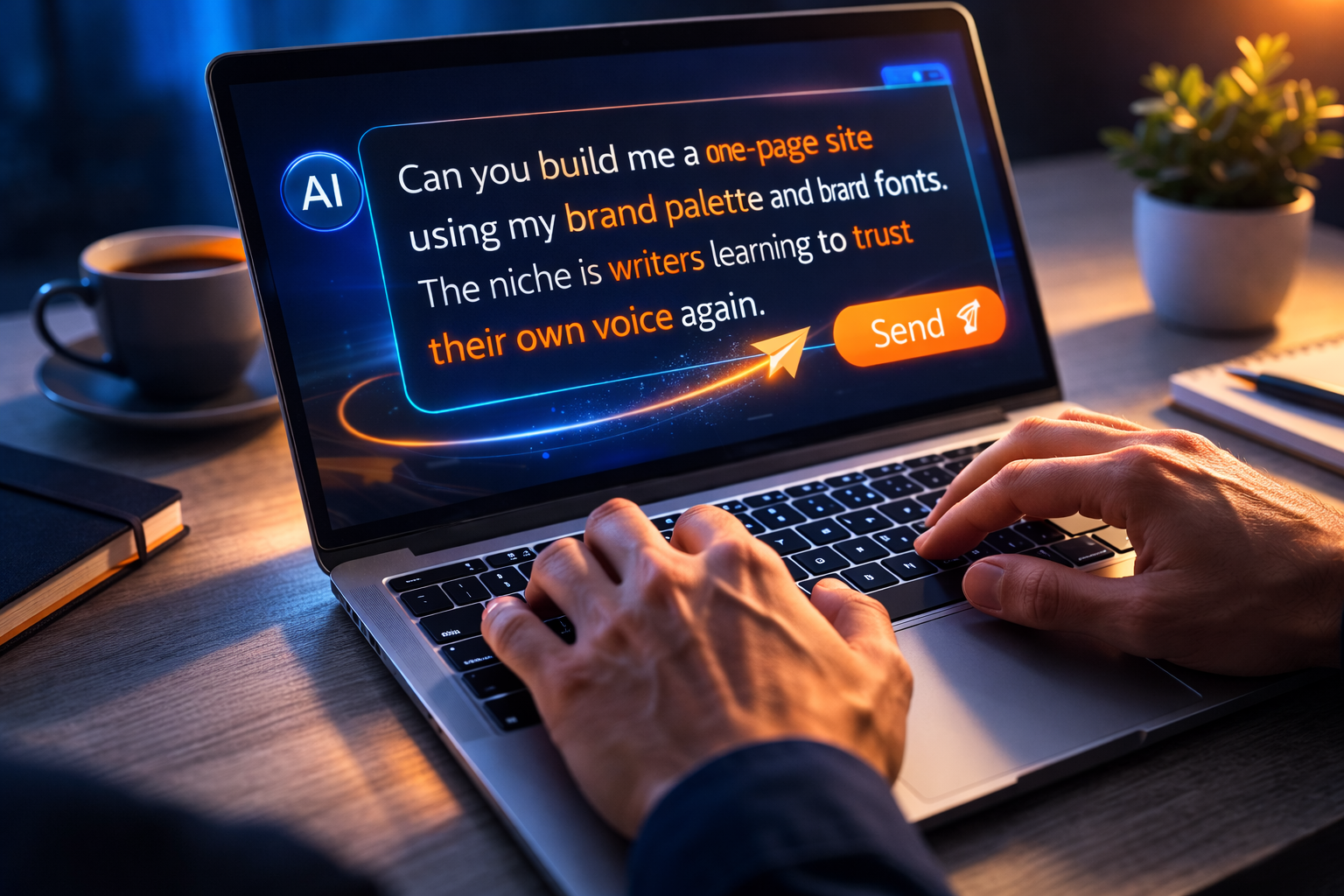
Here's exactly what April typed into the AI builder:
> "Can you build me a one-page site like this one [Amy Porterfield's URL]? Using my brand palette and brand fonts. The niche is writers learning to trust their own voice again."
That's it. One sentence with three key elements:
1. A reference site for structure
2. Her brand specifications
3. Her target niche
The AI went to work while we were on the call. About 15 minutes later, she had a complete site structure.
What the AI Actually Built
April showed us the results. The AI had created:
A banner section at the top
Navigation bar
Hero section with headline
Multiple content blocks
Image placeholders (with actual images imported)
Social media sections
Form placeholder areas
Footer with disclaimer
All the images it selected were automatically stored in her media library. The structure was there. The bones were solid.
As April put it: "This would have taken me freakin' hours to figure all this out."
What Worked Brilliantly
April was impressed with several things:
The structure was sound. The AI understood the concept of a one-page site and built appropriate sections.
Images were handled automatically. Every image the AI used was imported into her media library, ready to swap out.
Content was niche-appropriate. Because she'd specified "writers learning to trust their own voice," the AI generated writing-specific content that actually made sense.
It was fast. 15 minutes from prompt to viewable site.
Mobile responsive by default. The site worked on mobile without additional work.
What Needed Human Intervention
April was honest about the limitations:
Brand colors didn't apply. Despite her prompt mentioning "my brand palette," the AI didn't pull from her existing brand kit in the platform. It actually used Amy Porterfield's colors initially.
I suspected why: "The AI builder probably doesn't know yet to look there" - meaning at the brand kit stored in the platform's media library.
My suggestion was to use ChatGPT to convert her brand kit into text format, then include that directly in future prompts.
Some sections didn't translate perfectly. The AI interpreted Amy Porterfield's site but made different choices about which sections to include and how to structure them.
Images needed replacing. The placeholder images were fine, but April wanted her own photos and would need to swap them manually.
She'd already made changes. By the time she showed us, April had already updated most of the colors and some content, so we couldn't see the full "before" state.
The Feature April Missed: Assist Mode
Timothy jumped in with an important tip.
"Did you just go straight to the build, or did you do the assist first?" he asked.
April hadn't seen the Assist option. When she opened the AI builder, it had automatically opened to the Build tab.
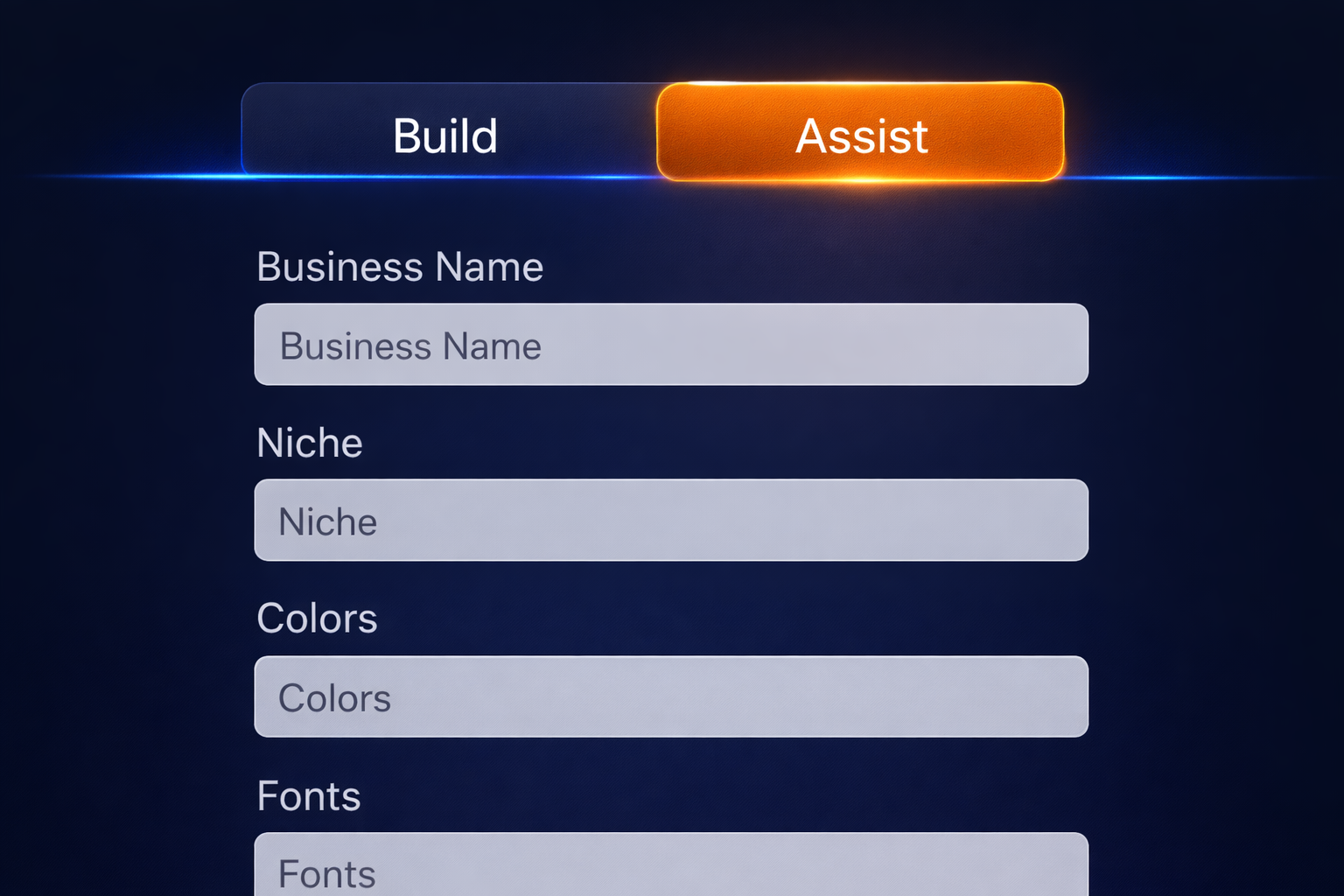
Timothy explained: "If you go to assist, and it asks you a bunch of questions, the next one that, like, after you fill out the basic questionnaire, is about your customizing, so it gives you the option of selecting your colors there, and it lets you select your fonts."
This was the missing piece. The Assist mode walks you through:
1. Basic business information
2. Your niche and audience
3. Color selection from your brand kit
4. Font choices
5. Then it takes your prompt
April decided to try again using Assist mode to see if it would properly apply her brand colors from the start.
A Design Principle That Applies to Every Website
Daniel Hanscom offered a photography insight that's worth remembering:
"The eye of the viewer is going to go in the direction of the direction that the subject is looking in the photo."
He pointed out that April's first image showed someone with their back to the copy. This literally directs the viewer's attention away from the message.
"If you did a vertical, like, a horizontal flip on that, it'll have the subject of the picture looking at your copy, which will naturally draw their eye towards the copy," Daniel explained.
April's second image already did this correctly - the writer was looking toward the copy.
This is the kind of feedback that makes hot seats valuable. Small details that have big impact.
Quick Fixes We Identified
I gave April a few immediate suggestions:
Make the banner stand out more. The top area that said "the next live group session is in the works" needed a different font than body text and probably a different background color.
Adjust the headline hierarchy. The main headline needed to be bigger and more prominent than the body text.
Handle the podcast section. April didn't have a podcast yet, so that section needed to be deleted, hidden, or changed to something that actually exists.
Add a real form. The form placeholder needed to be replaced with an actual opt-in form. I suggested she could use the AI builder to create a beautiful form too.
The Reality of AI-Assisted Building
Here's what I want you to understand: April didn't get a perfect, ready-to-publish website in 15 minutes.
What she got was a solid foundation that would have taken hours to build manually.
She still needed to:
Adjust colors throughout
Replace images with her own
Write or refine copy
Add actual forms
Remove sections that didn't apply
Fine-tune spacing and fonts
But as April said: "I did have to do a lot of changing, but other than that, I mean, this was... like I said, it was, what, 10 minutes? Maybe? It did take a long time to think, but I'm pretty sure that if I had used this thing that I didn't see, and all of this stuff, then it... I'm going to do that now while you're helping everybody else."
The AI gives you the skeleton. You bring the soul.
The Template Library Opportunity
I mentioned something at the start of the call that's worth repeating:
"If you guys show something, and a bunch of people are like, oh, I wish I had one like that, then don't hesitate to say, like, could we put Randy on this to make it look amazing, or genericize it so that, you know, Ty might have something that we could take and go, alright, let's make a generic Pykthos version for everyone to be able to use."
Then with this platform, "we could just take an asset like that and go, boom, it's now in your account, Joe."
This is the power of being on the same platform. When one person builds something great, we can share it with everyone.
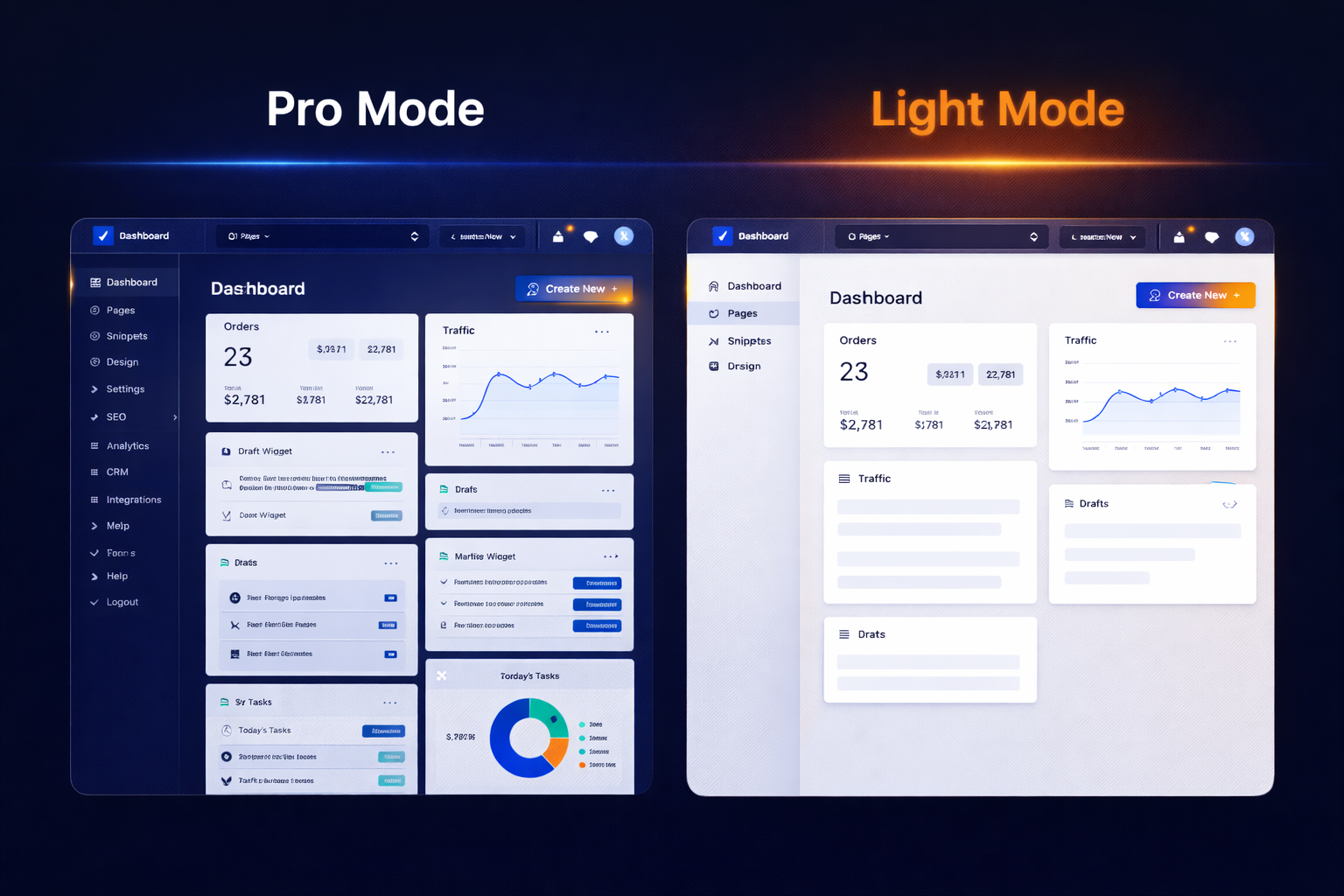
Light Mode: Reducing Platform Overwhelm
Timothy unveiled a new feature during the call that addresses a common complaint: too many buttons and options.
There's now a toggle at the top of the platform: Light Mode and Pro Mode.
Light Mode shows only the essentials:
Emails and brand boards in Marketin
Funnels, websites, forms, chat widget, and blogs in Sites
Basic settings only
Pro Mode shows everything:
AI agents
Opportunities and pipelines
Webinar tools
All advanced features
As Timothy explained: "Many of your eyes start to glaze when Chris and I geek out over this stuff. So in order to help, if you change it to light mode, which is recommended, only the absolute basic features that almost everybody uses."
You can toggle between them anytime. No extra charge. Self-serve simplification.
What You Should Do Next
If you want to try this yourself:
1. Find a site you like in your niche or adjacent to it
2. Prepare your brand details - have your colors and fonts ready in text format
3. Use Assist mode first - answer the questions about your business
4. Give it a clear prompt with the reference URL, your brand specs, and your niche
5. Let it build - it'll take 10-20 minutes
6. Plan for 2-3 hours of customization - colors, images, copy refinement
Remember April's experience: the AI won't give you a perfect finished product. But it will give you a foundation that would have taken much longer to build from scratch.
The Permission You Need
As I said on the call: "We can help you guys with our team in so many ways, but only if you ask for it."
This applies to AI too. The tool is there. The capability exists. You just have to use it.
April did. In 15 minutes, she had something she could work with. Not perfect, but done.
Done beats perfect every single time.
And when you bring your "done" to a mastermind call, we can help you make it great.
Ready to try the AI builder? Log into your Pykthos account and look for the AI website builder tool.
Want feedback on your site? Join our mastermind calls where we do hot seats and help you refine your work in real-time.
Not a member yet? Join the Pykthos Mastermind! We’d love to help you build a business that actually makes you money. https://pykthos.com/mastermind


